Using the Explorer
Browse blocks, transactions, and validators on Avail DA using the network explorers.
Note
The Avail network has two main explorers that can be used to browse the network:
- Avail Apps explorer: A dev-focussed explorer with powerful tools to work with the network.
- Subscan explorer: A simpler, and recommended way to explore the network for most users.
Switch networks
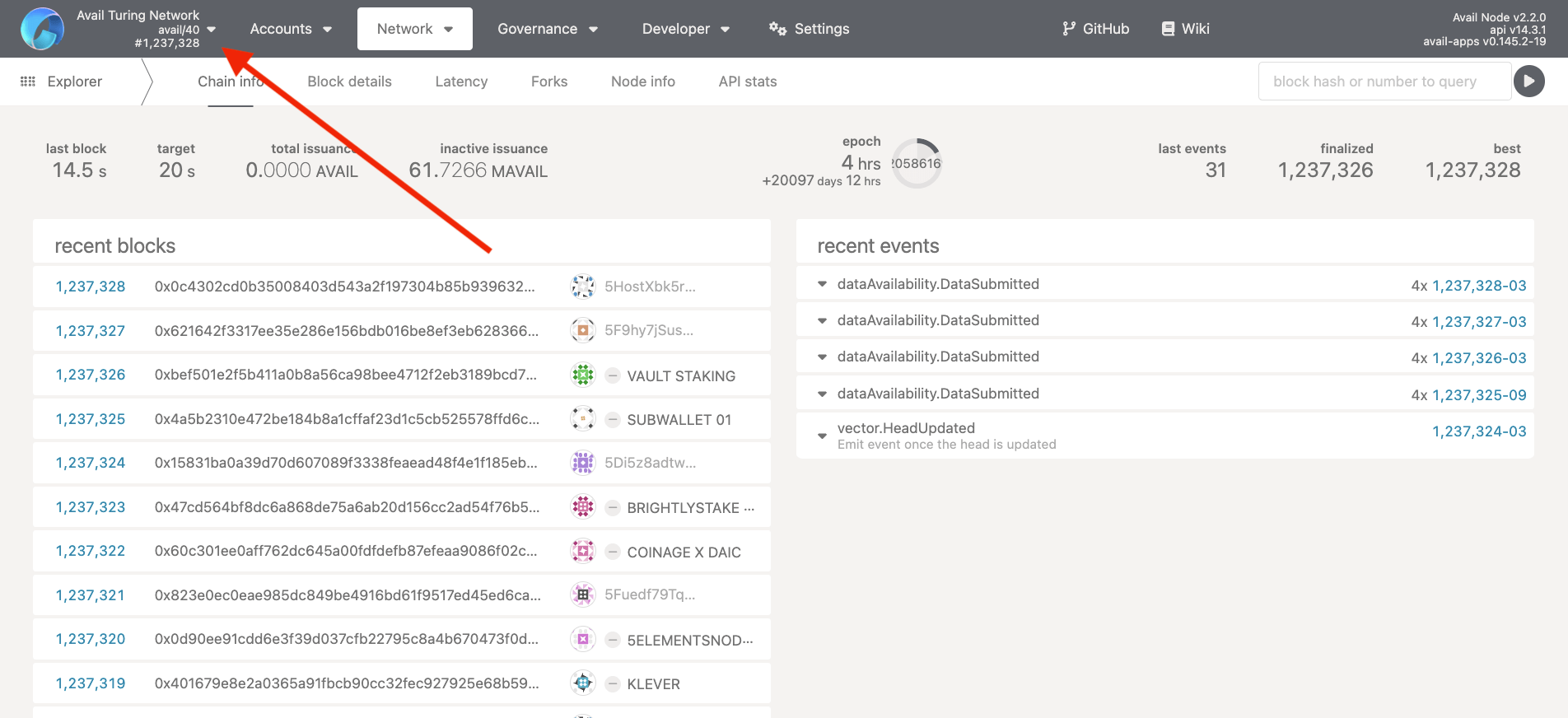
- Click on the
Network nameon the top-left.
-
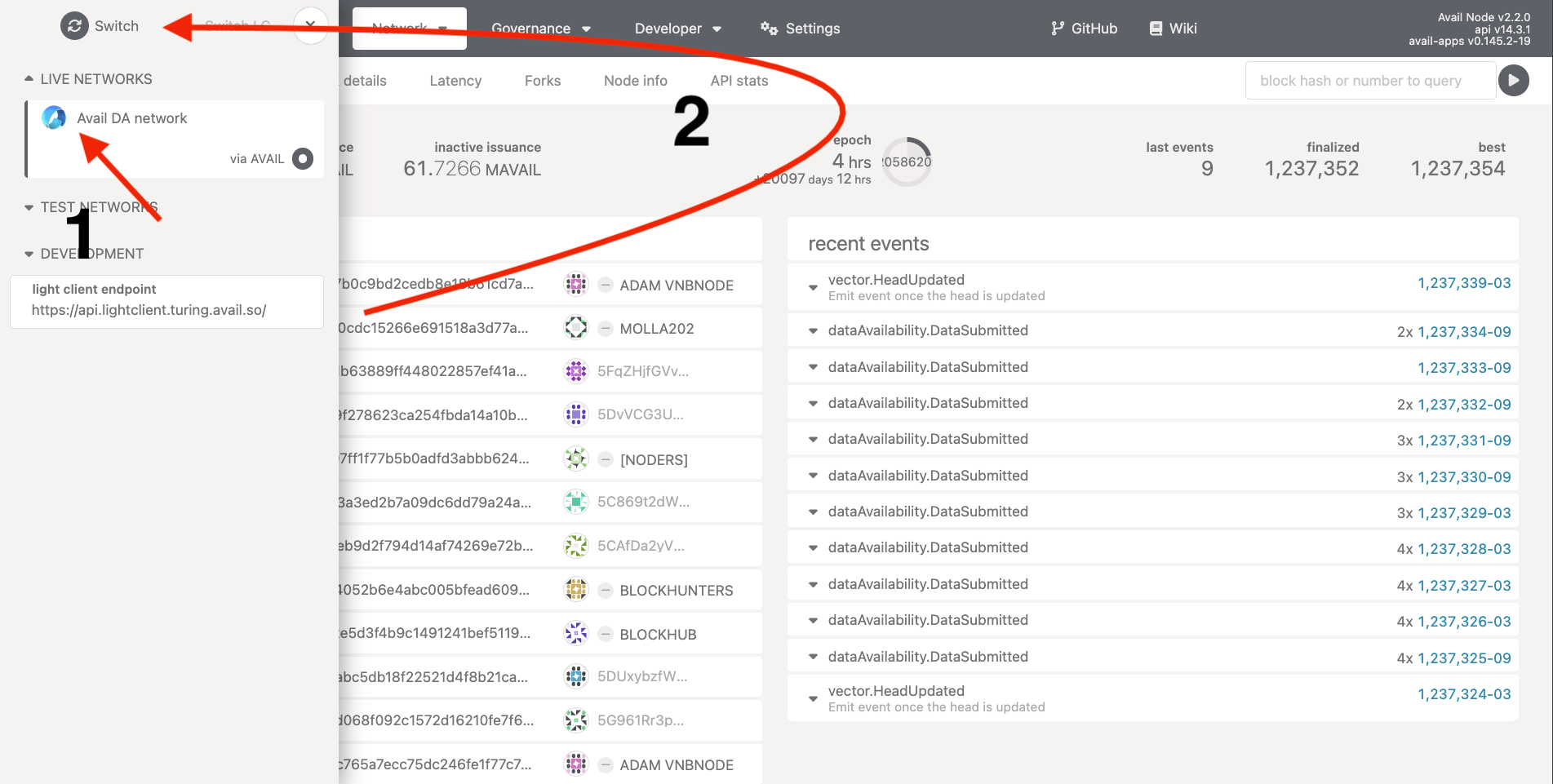
Depending on the network you are on, click on
live networks -> Avail DA network, ortest network -> Avail Turing testnet. -
Click on
Switch.
Look up the details of a particular transaction
Note
-
Due to how the network is designed, it is not possible for the
AvailAppsexplorer to query a transaction's details using just it's hash directly from a node. -
The
Subscanexplorer however, makes it possible to do so, since it queries from a dedicated indexer built on top of Avail to support this feature.
Note
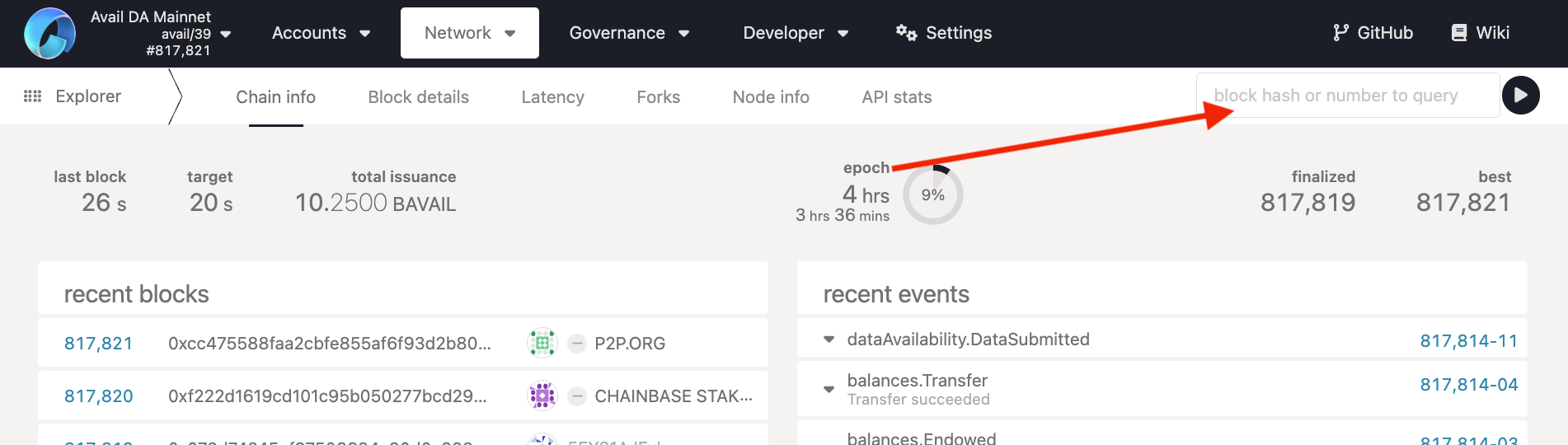
Search for a txn using it's
block number/block hash AND it's transaction hash- Search for the
block numberorblock hashof the block your transaction was included in.
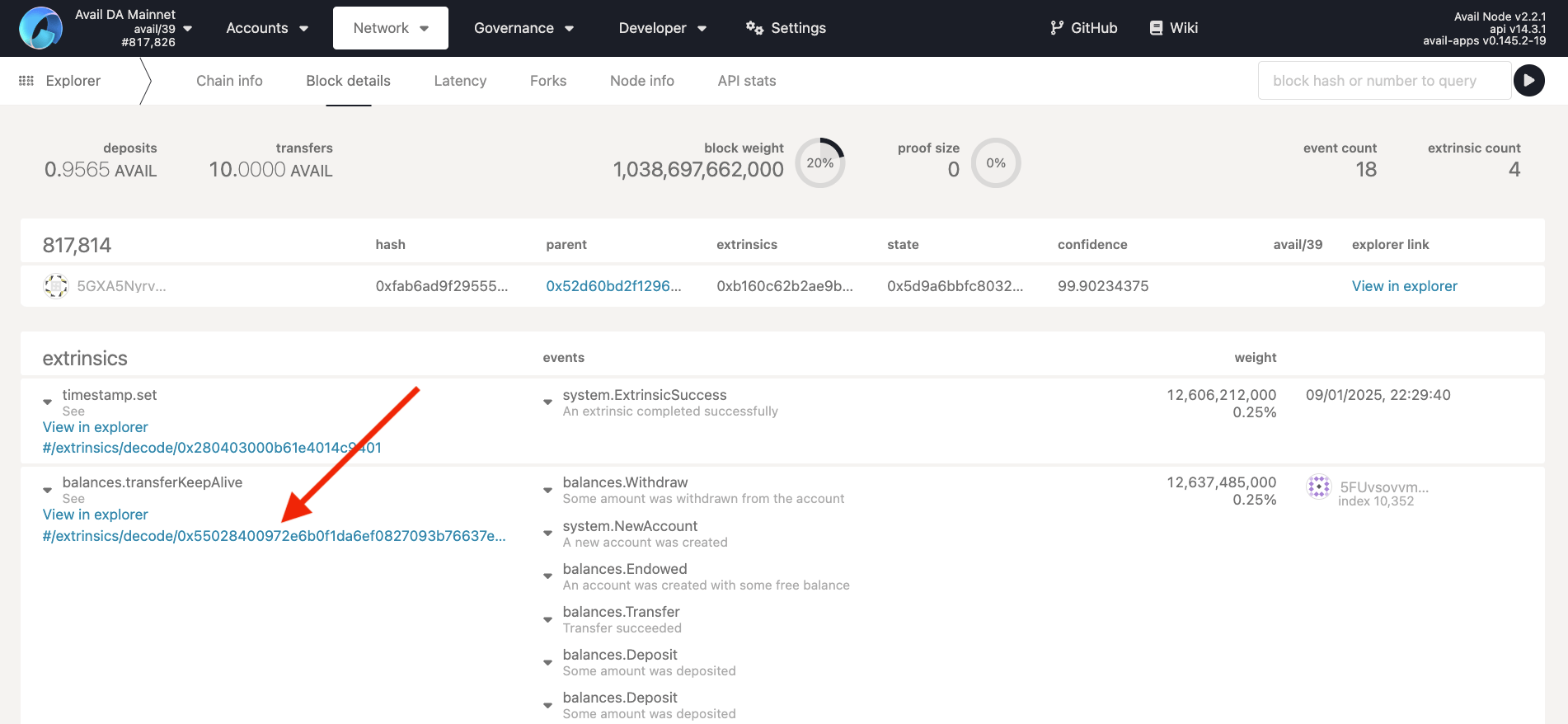
- The explorer then fetches all transactions from that specific block. Click on the hash of the transaction you are interested in to get a detailed view.
Create accounts within the explorer
The
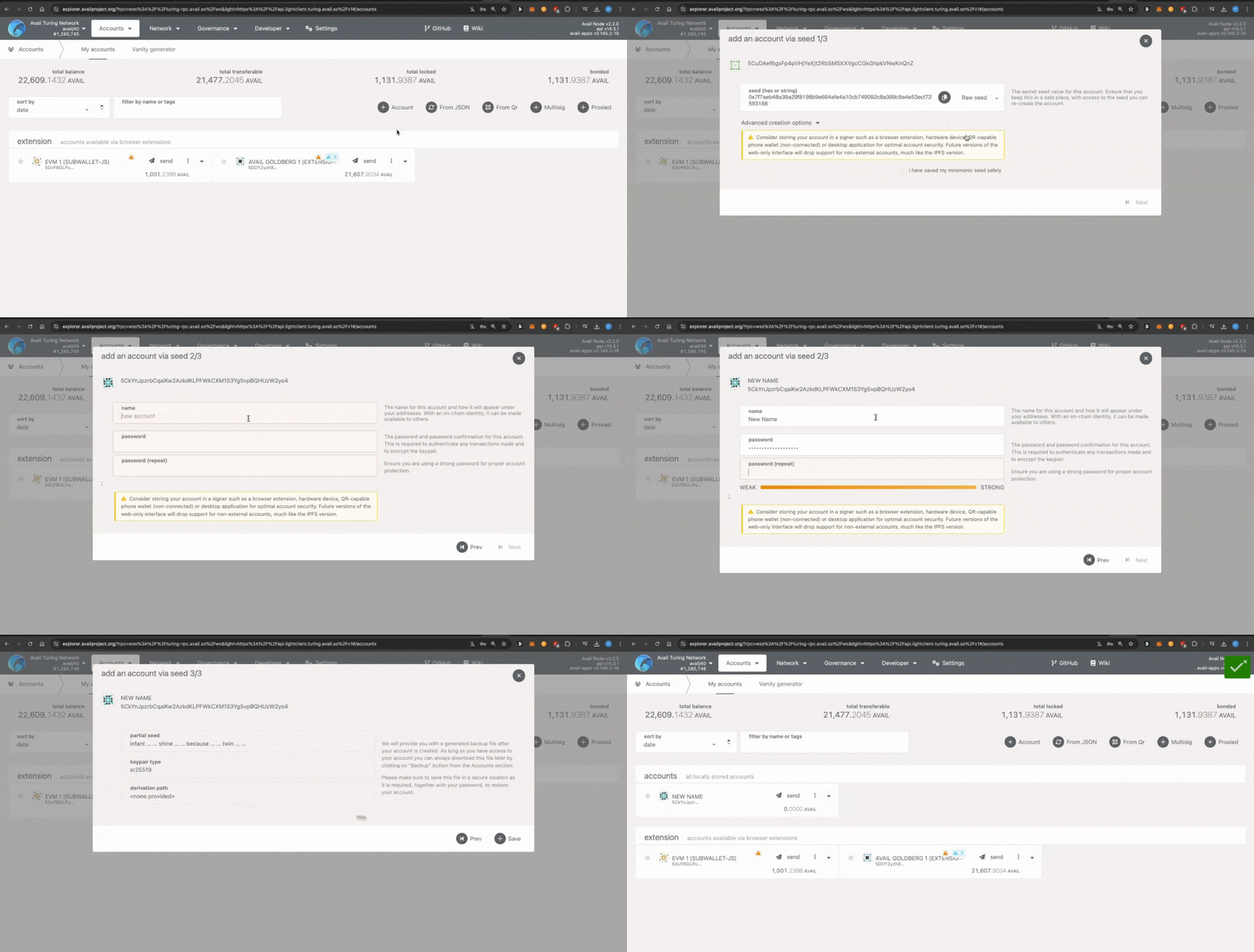 You can do a few things here:
AvailApps explorer can be used to add or import Avail accounts into the explorer.To go to the page, click on the Accounts tab on the top-left, or click this link.- The
accountssection shows any accounts created straight from the explorer. You don't need any wallet extensions to create or use them. - The
extensionsection shows any accounts connected to the explorer from wallets likePolkadot.js,Subwallet,Talisman, etc...
- Create a new account using a
mnemonicor by clicking on the+ Accountbutton. - Import an account via an encrypted JSON file.
- Connect extension accounts from wallets like
Polkadot.js,Subwallet,Talisman, etc... - Create a multisig account. We have covered instructions to do so in our docs here.
- Create a proxy account. We have covered instructions to do so in our docs here.
- The
AvailAppsexplorer also allows you to use hardware wallets to safely connect cold accounts. We have covered instructions to do so in our docs here.
Any of these accounts that you connect can be used to sign transactions on the network. Which is something we will cover in the next section.
Using the explorers to interact with the network
Wrt interacting with the network, the
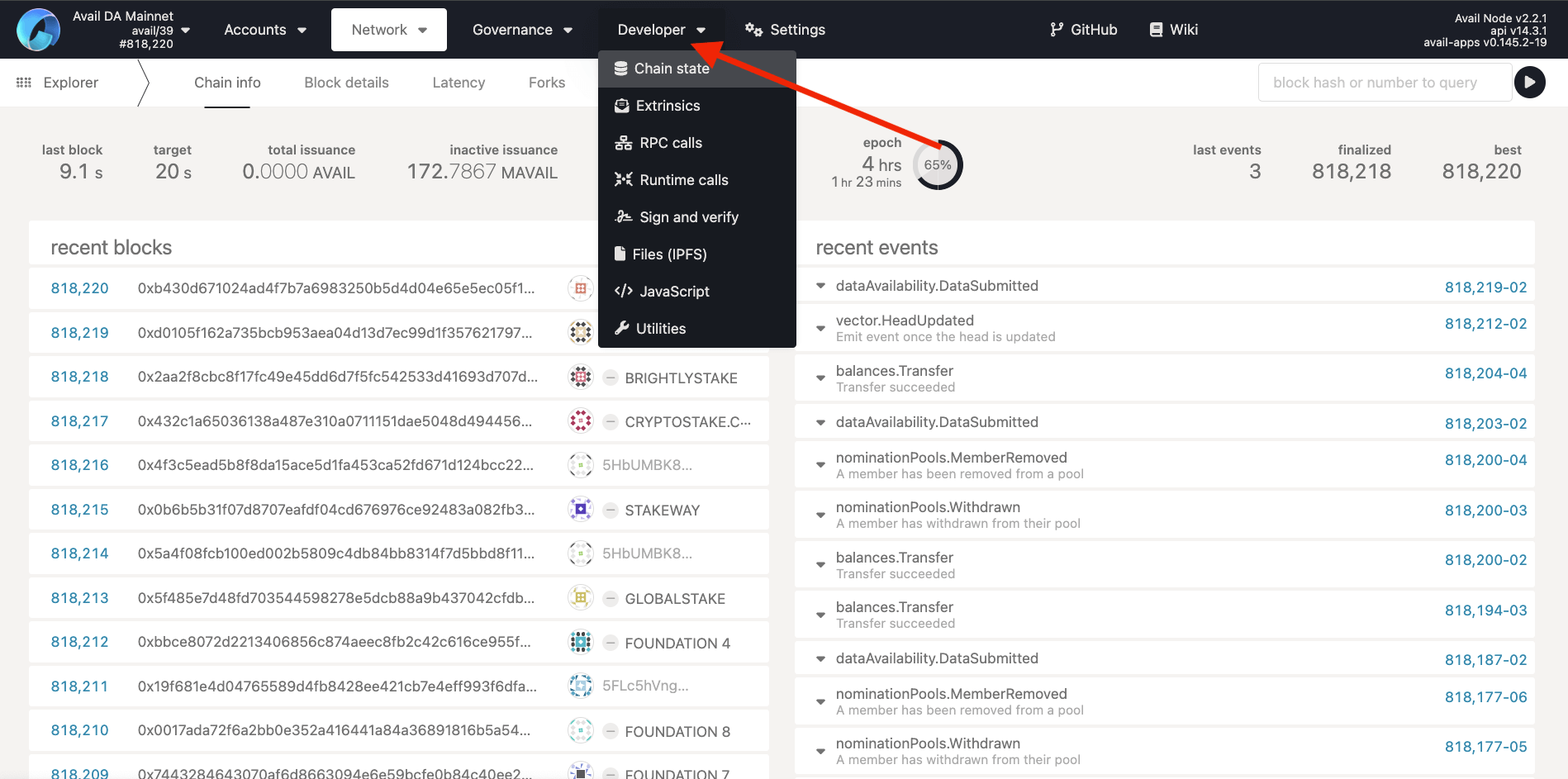 Let us learn how to query the network using the
 You can also use the
AvailApps explorer can be used to:- Query data from the network by calling
Chain StateorRPCmethods. - Send transactions to the network by signing and submitting
Extrinsics.
Developer tab.Note
WHAT ARE PALLETS?
Avail organizes its runtime functionality into
Avail organizes its runtime functionality into
pallets. Each pallet is a collection of calls and extrinsics of a specific functionality.
For example, the data_availability pallet contains all the calls and extrinsics related to querying and submitting data to the network, and so on.
Some methods might be grouped into seemingly unrelated pallets for technical reasons, but this largely holds true.To look for a particular method within the AvailApps explorer, you need to know the pallet it belongs to.How to use the explorer to query the network
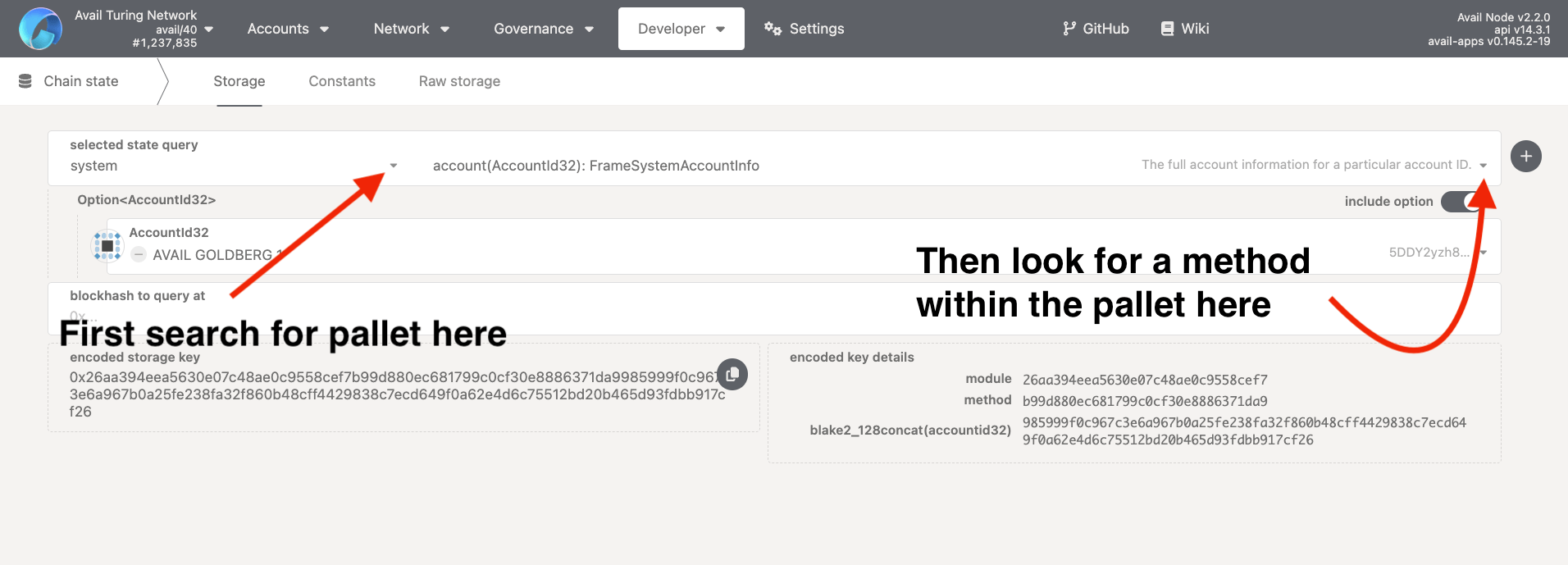
AvailApps explorer by querying the balance of an account.-
Either go to the
Chain Statemethods menu from within theDevelopertab or click on this link. -
The balance of an account can be queried by calling the
account(AccountId32)method from within thesystempallet. Select thesystempallet from the dropdown on the left, and theaccount(AccountId32)method from the dropdown on the right.
Note
THE
This toggle allows you to enter params for a method when it is toggled on. You can also call methods without passing a param by keeping it off.
But
Hot tip: Try calling the
include option TOGGLEThis toggle allows you to enter params for a method when it is toggled on. You can also call methods without passing a param by keeping it off.
But
system_account method won't return anything without an AccountId32 param being passed to it, so we will keep it on. Hot tip: Try calling the
dataAvailability_appKeys method with the include option toggle off to see what happens.-
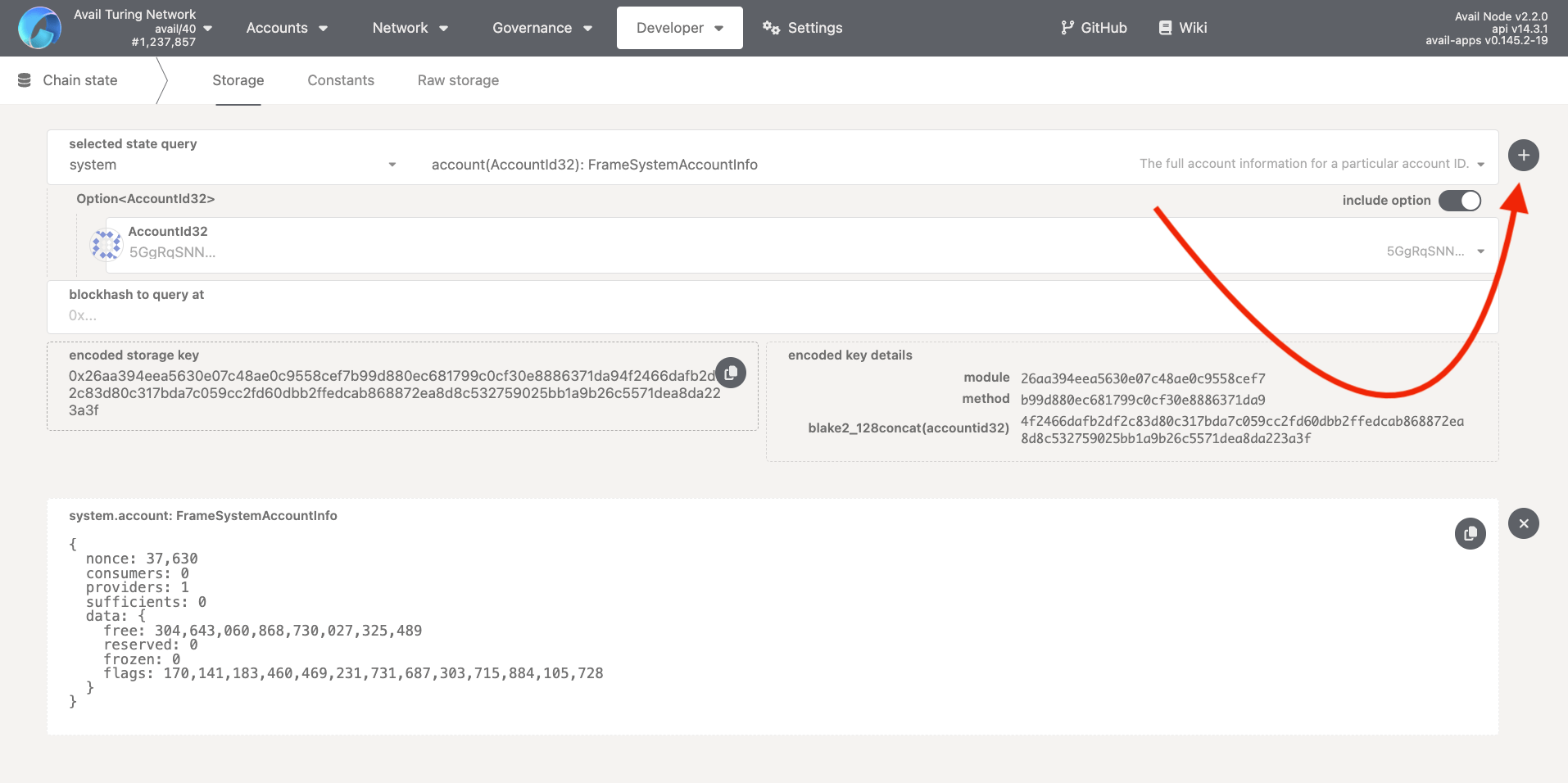
Either paste the address of an account in the
AccountId32field or select an explorer-connected account from the dropdown. -
Leave the
blockhashfield empty (This will query the latest balance of the account), and click on the+button near the top-right.
- And that's it. You just used the
AvailAppsexplorer to query the balance of an account on the Avail network. You can query other methods in a similar way.
How to use the explorer to send transactions to the network
AvailApps explorer to sign custom transactions/extrinsics and submit them to the network.
We have covered different examples of doing so in our docs. Here is one of them:Submit data to a particular AppID.Bonus: How to query chain constants using the explorer
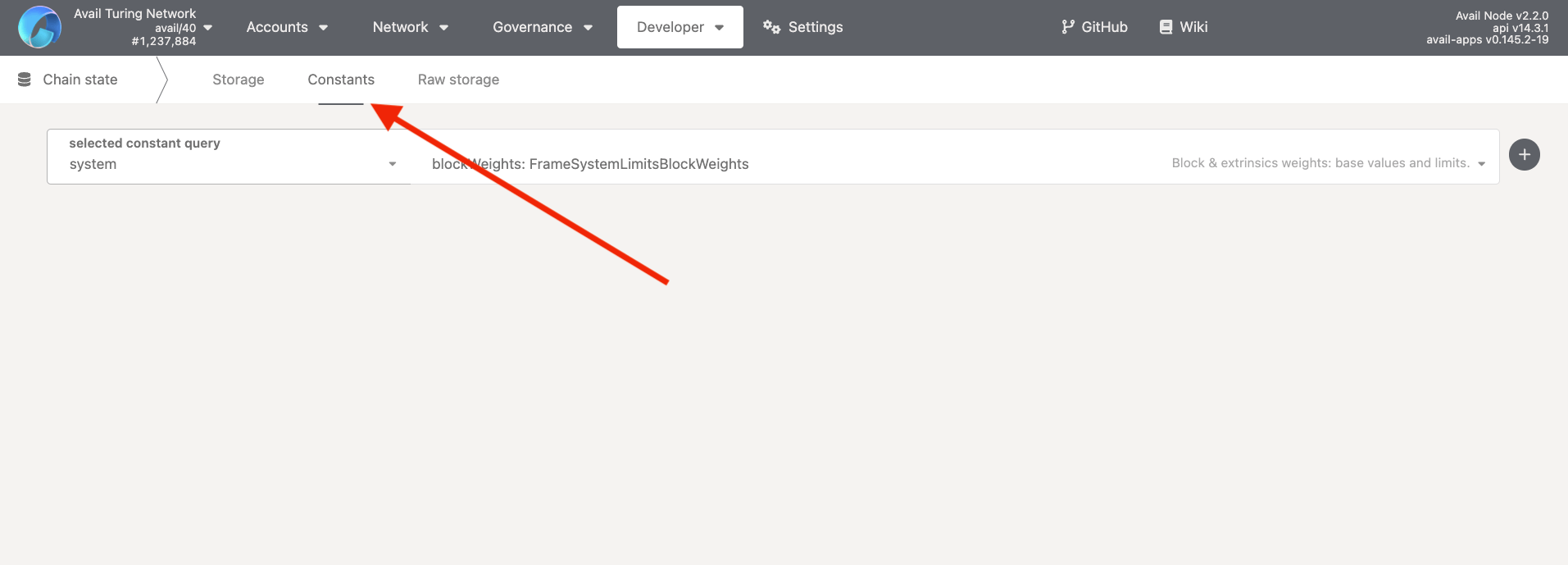
- The
AvailAppsexplorer allows you to query the current values of all of it's runtime constants by going to the constants tab withinDeveloper -> Chain State.
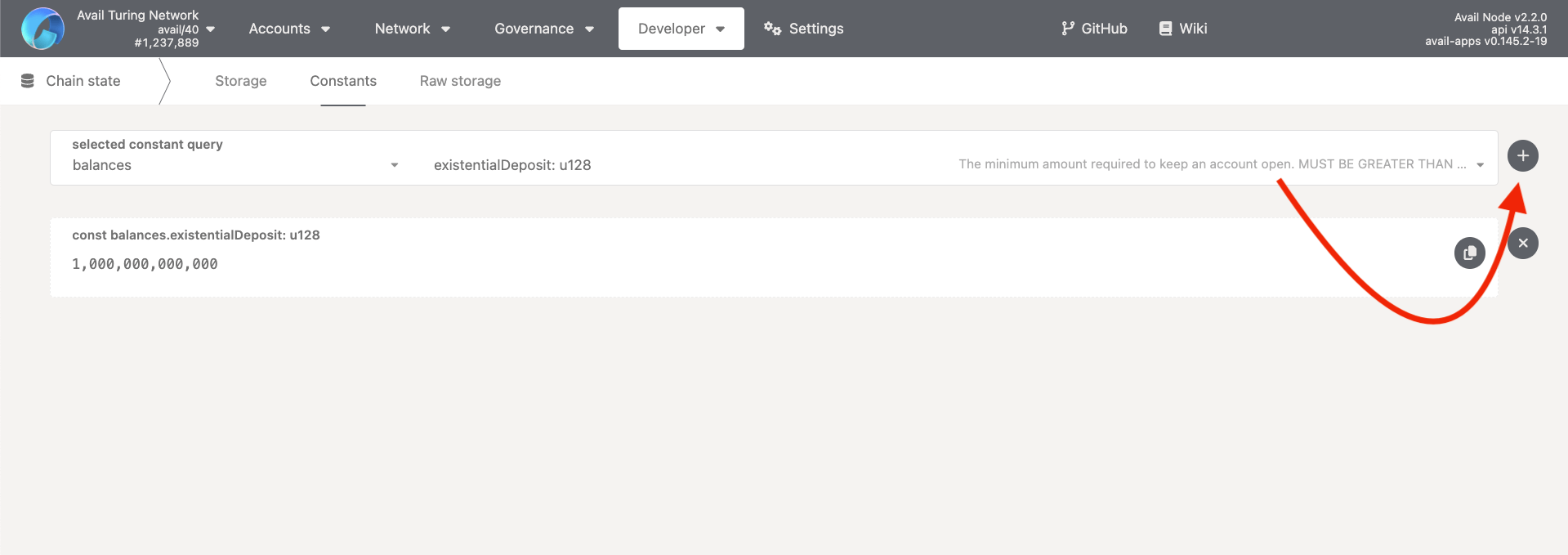
- For example, to query the current value of the
existentialDepositof an account on Avail, which is the minimum amount required by an account to exist on the network, you can call thebalances_existentialDepositconstant.
P.S: The balance displayed is inattoAVAIL. 1attoAVAIL= $10^-18$AVAIL.
- You can look up any other constant in a similar way.
Working with App IDs in the explorer
How to check the next available appID?
appID on Avail DA. Let us first check out the next available appID on the network.
-
Make sure you're on the
chain statesection of the explorer. You can access it by simply clicking this link, or by navigating to it through thedevelopertab near the top right. -
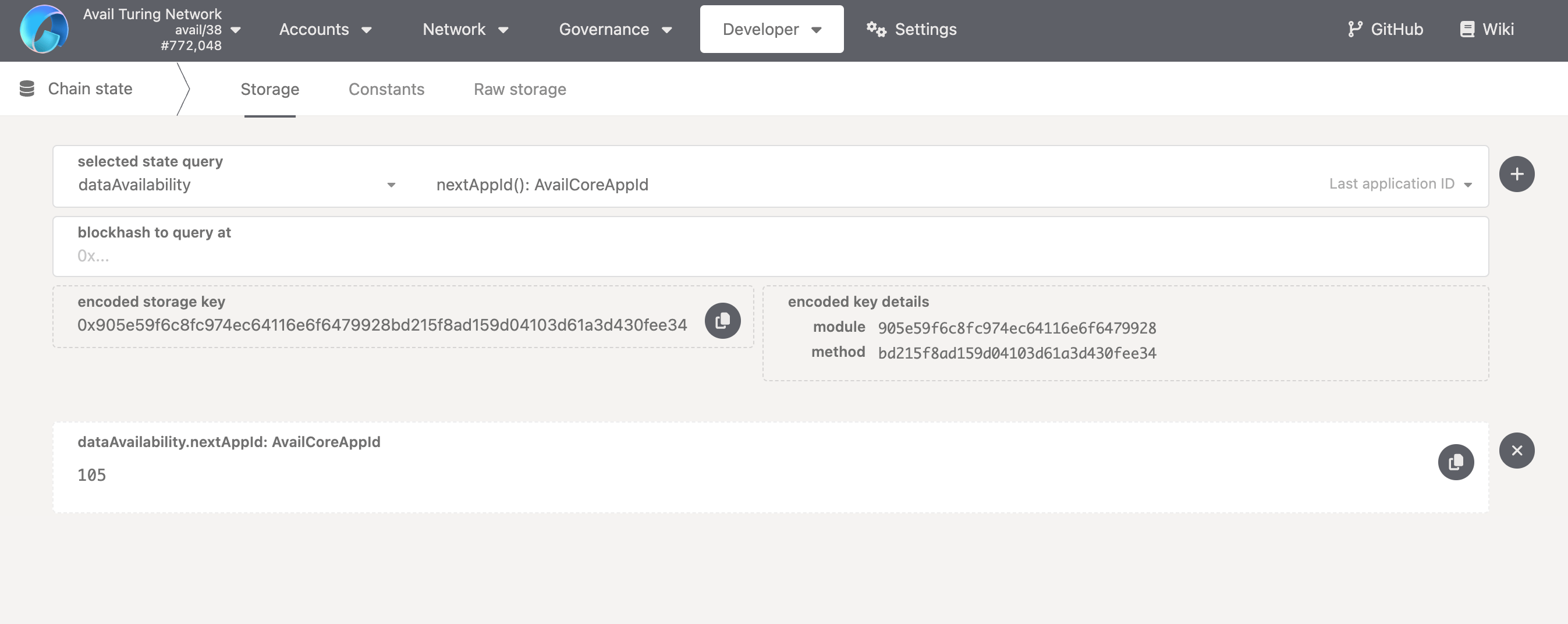
Within the
dataAvailabilitypallet, select thenextAppIdmethod. No need to pass any params, just click the+button next to the method name. -
You will be returned the next available
index/idfor a newappID.
How to register my own appID?
- Make sure you have one or more Avail DA wallets connected to the explorer. If you don't know how to do so, you can follow our docs on setting up a new wallet.
-
Simply click this link OR navigate to the
extrinsicssection of the explorer through thedevelopertab.
Note
Please note that the
Developer tab does not show the extrinsics section at all if you don't
have a wallet set up on the explorer or an extension wallet connected to it.
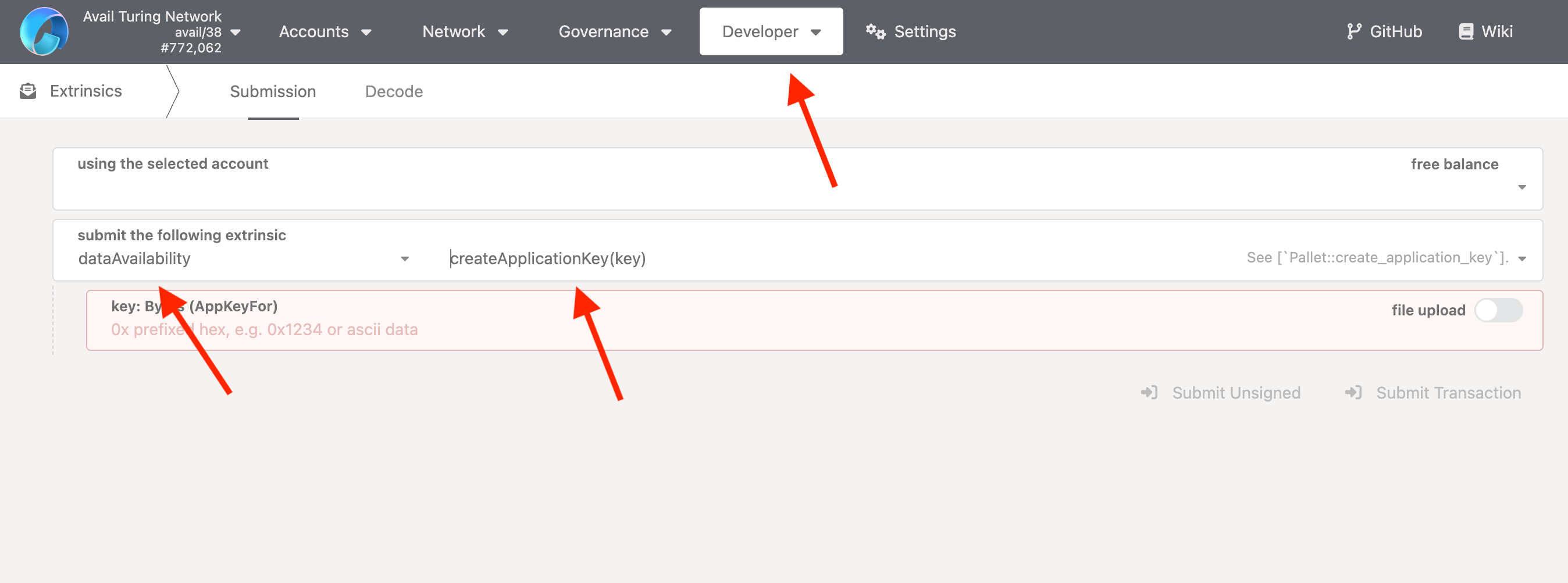
So make sure you have an Avail DA wallet set up before moving forward.- Select the
dataAvailabilitypallet, and thecreateApplicationKeymethod.
-
Enter a
keyfor yourappID. It can be anything you like, really. - This is how it should look like in the end:
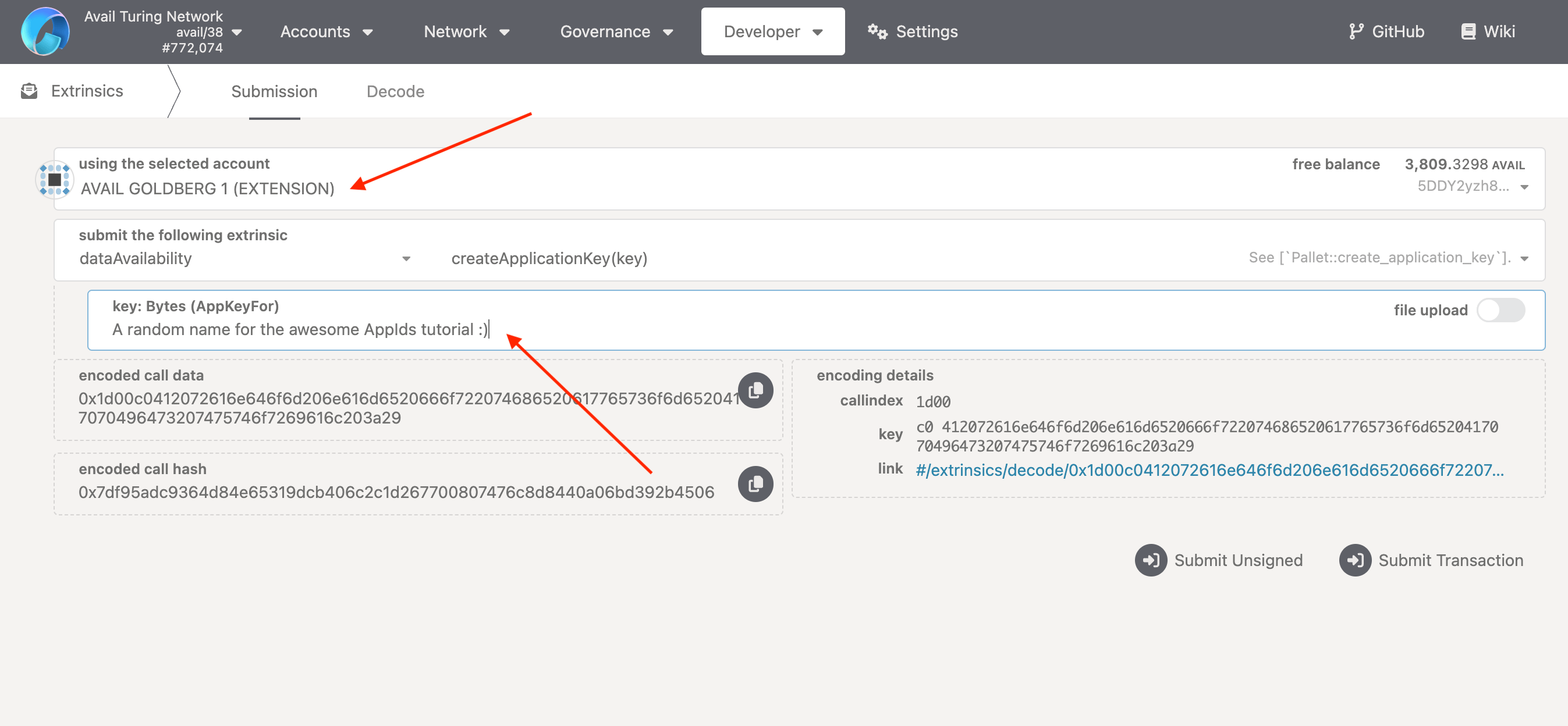
- Click on
Submit Transaction, and then click onSign and Submitin the box that pops up.
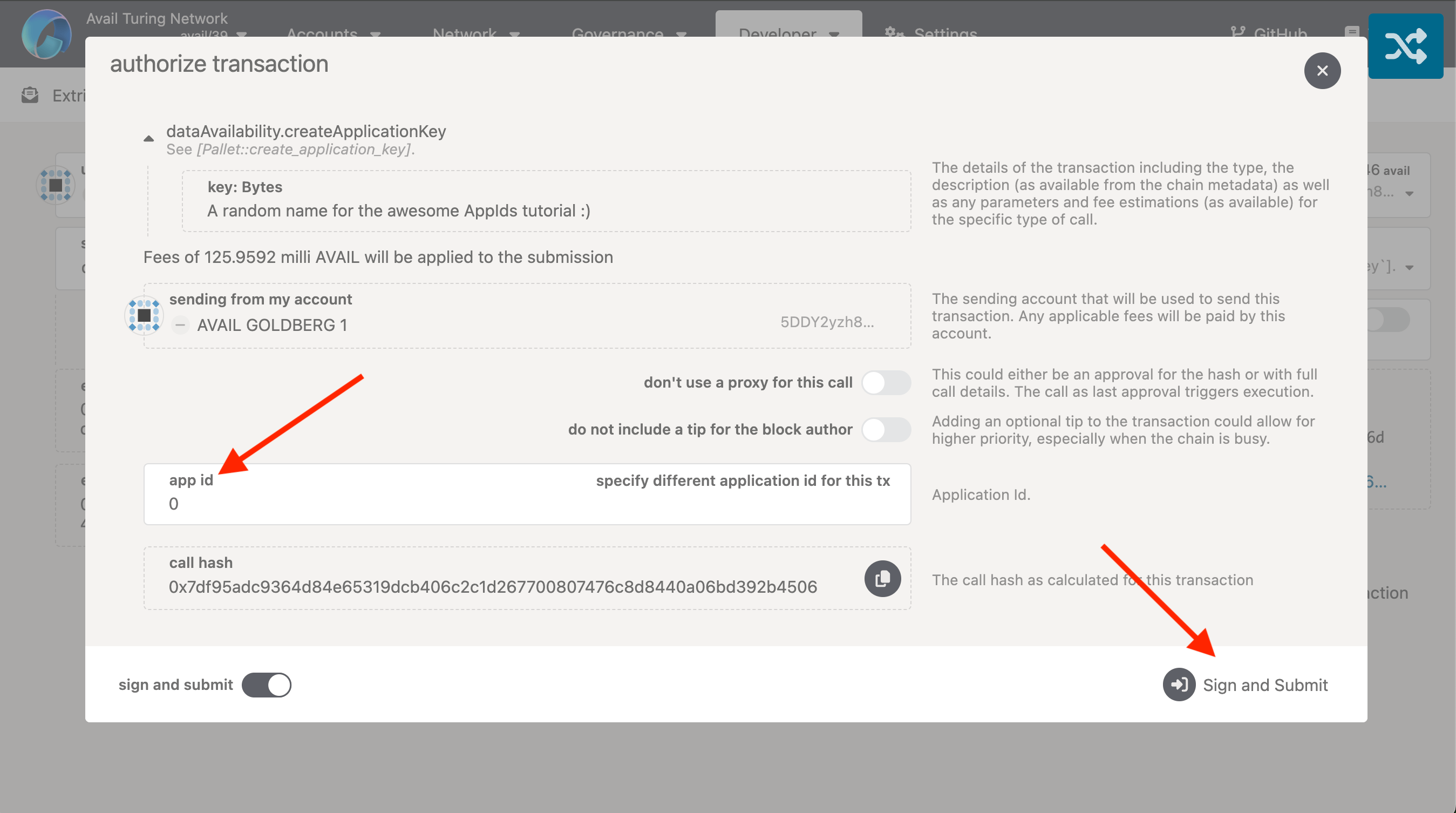
Note
DO NOT CHANGE THE
appID FOR THIS TRANSACTION- Each and every single transaction on Avail DA has an
appIDassociated with it, which is greater than or equal to0. - A transaction or data submission with the
appIDof0is used for chain-level operations. - This is what we need to use for creating a new
appID, since the act of creating a newappIDhas nothing to do with a specific 'app' on Avail DA. - This field would instead have been a positive integer if we, for example, were submitting data to a specific application on Avail DA.
-
Authorize the transaction through your wallet, and you're done! You've successfully created your own
appIDon Avail DA. -
You can verify
7by using the steps covered earlier to query theappKeysmethod :)
How to submit data to my appID?
appID on Avail DA using the explorer by calling the
submitData extrinsic from within the dataAvailability pallet.
- Make sure you have one or more Avail DA wallets connected to the explorer. If you don't know how to do so, you can follow our docs on setting up a new wallet.
-
Simply click this link OR navigate to the
extrinsicssection of the explorer through thedevelopertab. -
Select the
dataAvailabilitypallet, and thesubmitDatamethod.
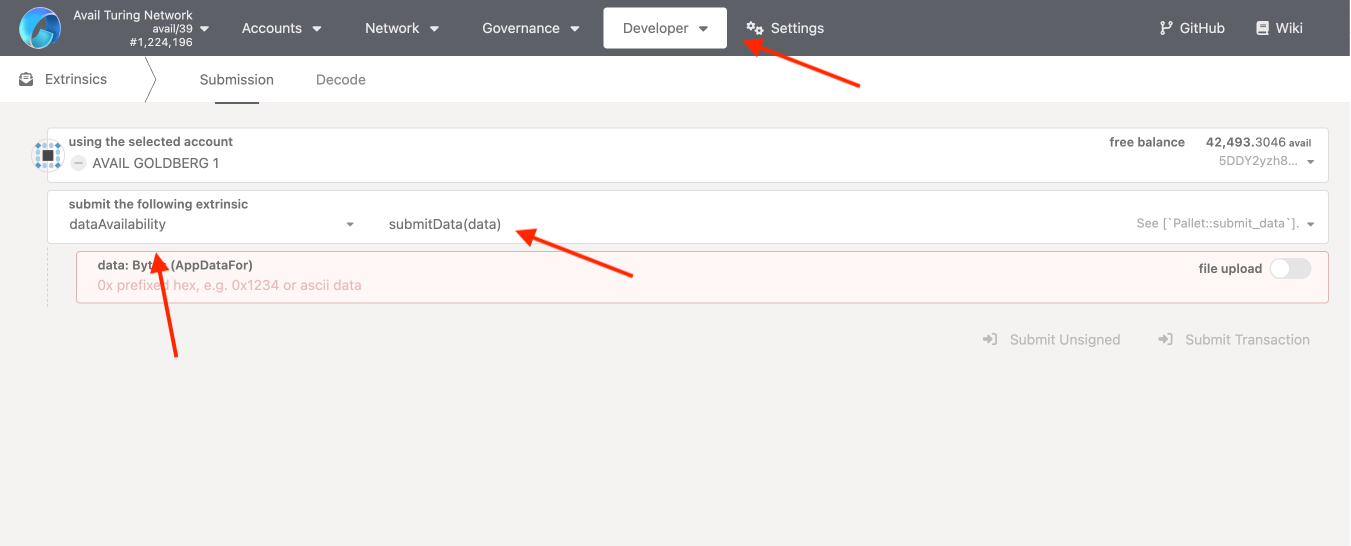
- Enter a random
datastring that you want to submit to yourappID, and then click onSubmit Transaction.
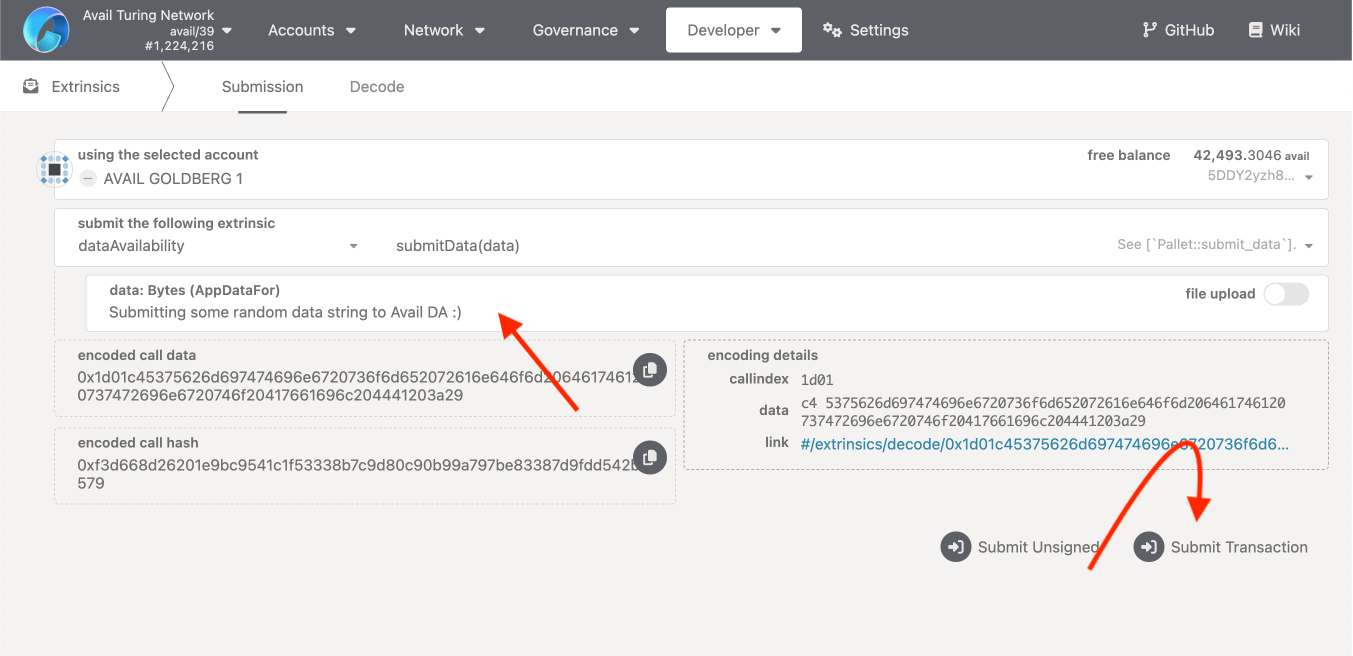
- Fill in the
AppIDthat you want to submit the data to. Click onSign and Submitto authorize the transaction through your wallet.
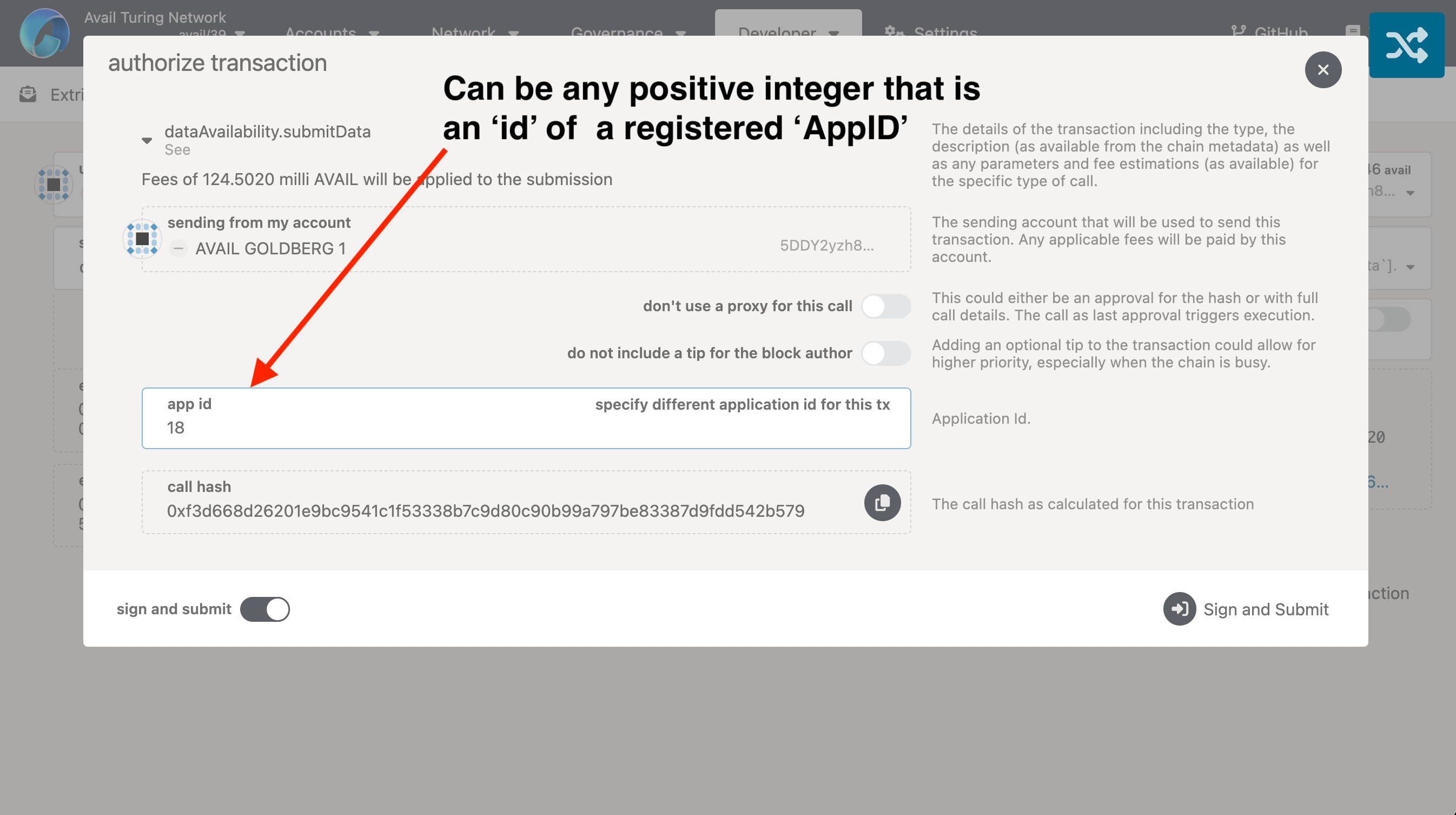
- Wait for the transaction to be included in a block and then open the detailed view of the block.
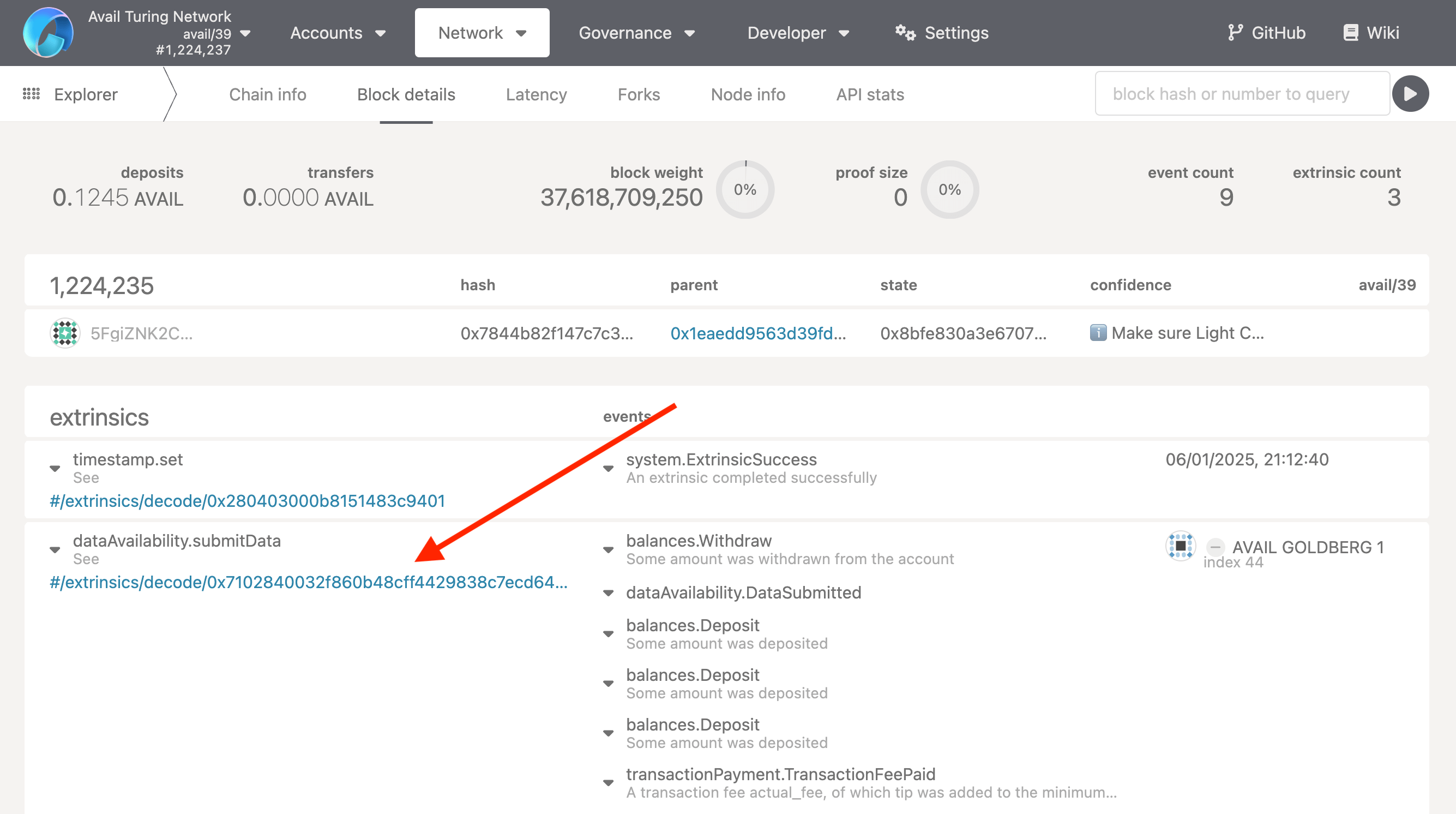
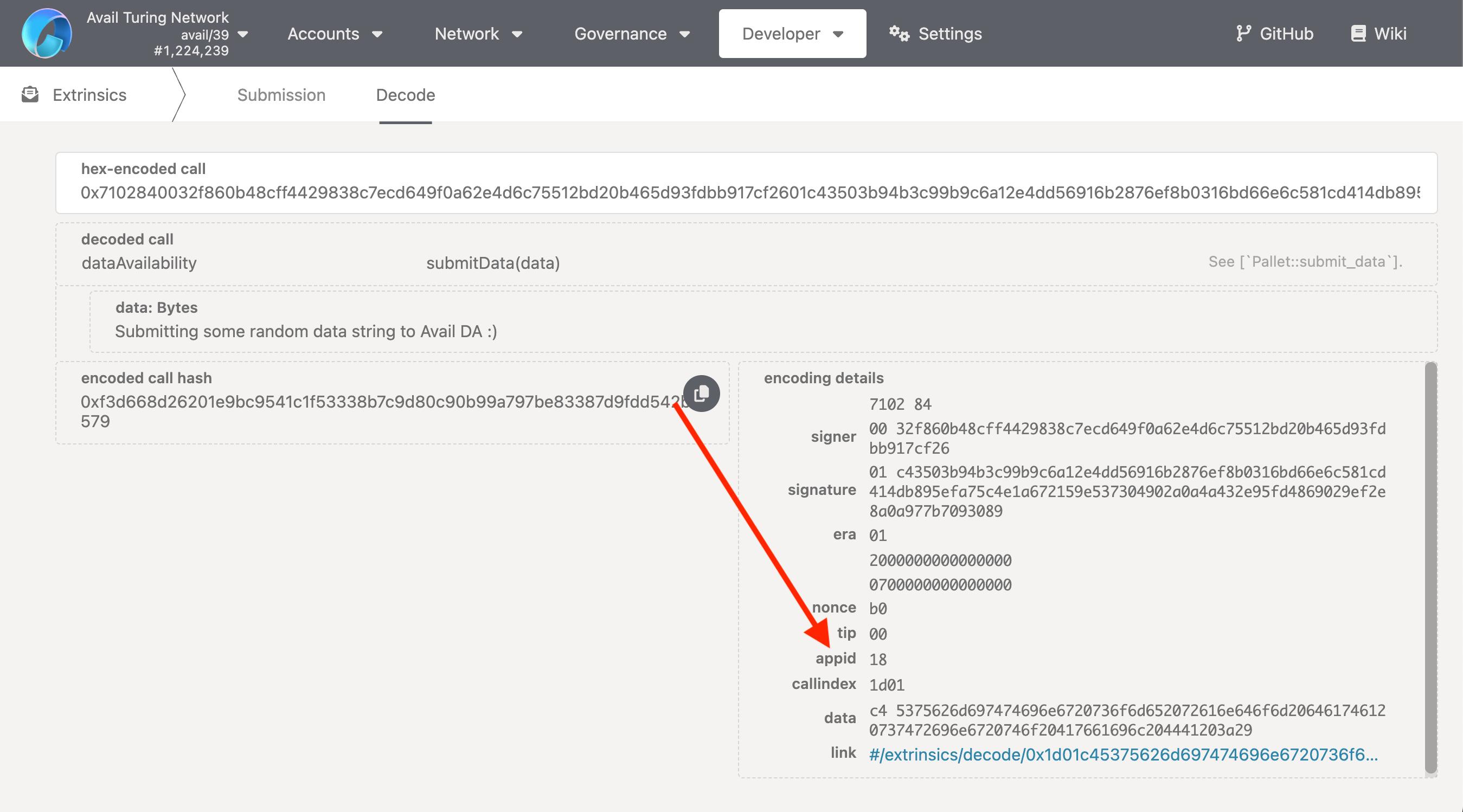
- Click on your specific transaction to see it's details. This is what it should look like:
Wrapping up
How is this guide?